
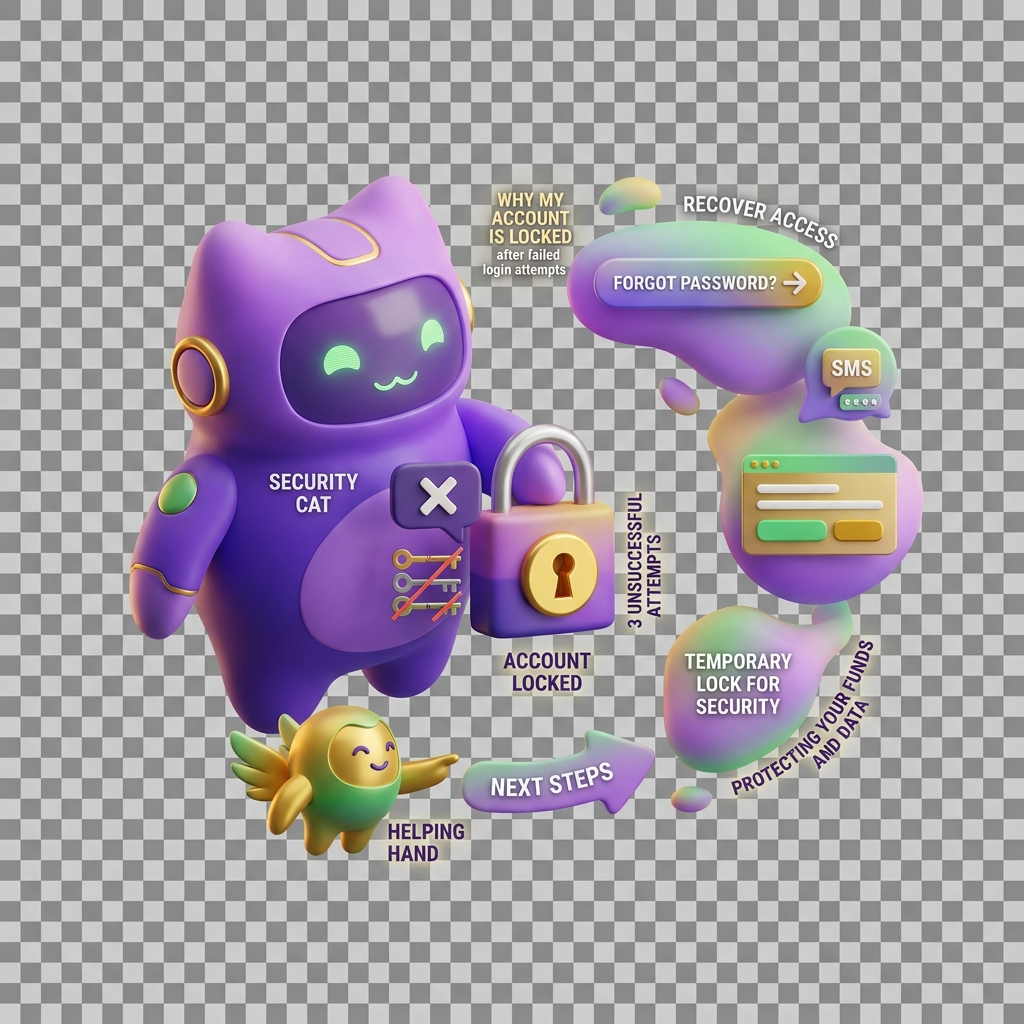
Why Your Account Is Locked After Failed Login Attempts
If you’ve tried to log in to KiddyCash several times and suddenly can’t get through, your account may be temporarily locked. This is a security feature — not a bug. It is designed to protect your wallet, your children’s allowances, and any linked family or business accounts from unauthorised access.
This article explains what you’ll see when your account is locked, why it happens, and exactly how to get back in.
What You’ll See (Symptoms)
- A message such as “Your account has been temporarily locked” or “Too many failed login attempts”
- The login button becomes unresponsive or grayed out
- You are unable to log in even if you enter the correct credentials immediately after
- You may receive an SMS or email alert notifying you of the lock — this is normal and does not mean someone has accessed your account
Why This Happens (Causes)
KiddyCash locks an account automatically after a set number of consecutive failed login attempts. Common reasons this occurs include:
- Typing the wrong password — even a single misplaced character counts as a failed attempt
- Using an outdated password — if you recently changed your password and are still using the old one
- Entering the wrong OTP (One-Time Password) — OTPs are time-sensitive and expire quickly; entering one after it has expired counts as a failure
- Someone else attempting to access your account — if you receive a lock alert but did not try to log in yourself, treat this seriously and contact support immediately
- Switching devices — sometimes autofill on a new phone or browser submits saved credentials that no longer match
What is an OTP? A One-Time Password is a short numeric code sent to your registered phone number (for example, via mobile money SMS or a standard SMS in your city or any other city) each time you log in. It confirms that it is really you.
How to Regain Access (Solutions)
Follow these steps carefully:
-
Wait for the lock to lift automatically. Most locks clear within 15 to 30 minutes. Do not attempt to log in during this time — repeated attempts may extend the lock period.
-
Go to the KiddyCash login page at https://kiddy.cash/login once the waiting period has passed.
-
Try logging in using email and OTP instead of your password. This is often the fastest way back in without needing to reset anything. See how to log in with email and OTP for a full walkthrough.
-
Reset your password if you have forgotten it. If you cannot remember your password at all, follow the steps in how to reset a forgotten password. You will receive a reset link or OTP on your registered phone number or email address.
-
Check your registered contact details are still active. If you have changed your phone number (for example, a new your mobile carrier line) or email address and have not updated your KiddyCash profile, you may not receive the OTP or reset link. In that case, contact KiddyCash support directly for identity verification.
-
If you suspect someone else tried to access your account, change your password immediately after regaining access and review your recent transaction history for any activity you do not recognise.
Tips to Avoid Future Lockouts
- Save your password in a secure password manager rather than relying on memory
- Always use the latest OTP — they typically expire within 5 minutes
- Keep your registered phone number and email address up to date in your account settings